
impressBox AI Agent
The AI agent that runs your screen network
The impressBox AI Agent is built into the impressBox digital signage CMS: you ask in plain language, and it creates and edits content, writes templates, publishes and schedules playlists, checks device status, and diagnoses and fixes screens.
What the AI Agent does
The agent can reach the whole platform, so a single request can span content, playlists and devices.
Creates and edits content
Uploads files, edits images with generative AI, imports YouTube, Canva and Power BI content, names and categorizes items, and sets date and time restrictions.
Writes HTML templates
Describe a menu board or a KPI dashboard in one sentence and the agent writes the template, then binds it to live data such as weather, time, prices or Power BI.
Publishes and schedules playlists
Builds playlists, publishes them to screens, schedules start dates, end dates and rotations, and checks that every screen really plays the new version.
Checks device status
Tells you which screens are online, shows a screenshot of what they are playing and reports playback statistics per campaign.
Diagnoses and fixes devices
Reads device logs, pings and traces the network, checks time sync, then reboots, updates or reconfigures the player.
Controls the hardware
Display on and off, backlight and brightness schedules, volume and mute, remote-control keys and screen orientation.
Where you can talk to it
Web dashboard
A chat panel inside the impressBox dashboard, next to your content and devices.
Send a request, or a photo to put on screen, from your phone.
Slack
Ask in the Slack workspace your team already uses.
Claude and other MCP clients
Connect any MCP-compatible AI client through the impressBox MCP server.
Example prompts
Typical requests the agent handles; most come from the impressBox prompt library.
“Create a 'Weekend Offer' playlist with my latest three product photos and schedule it for Saturdays.”
Builds the playlist from the three newest photos and adds a Saturday schedule.
“Remove the background and keep the mug. Add a -50% discount and the price 5 EUR.”
Edits the image with generative AI and saves the result as new content.
“Create a template from this image.”
Reads the design and turns it into an HTML template with editable fields.
“Set the soup price to 6 EUR in the 'Daily lunch' item.”
Changes only that value in the template; the layout stays as designed.
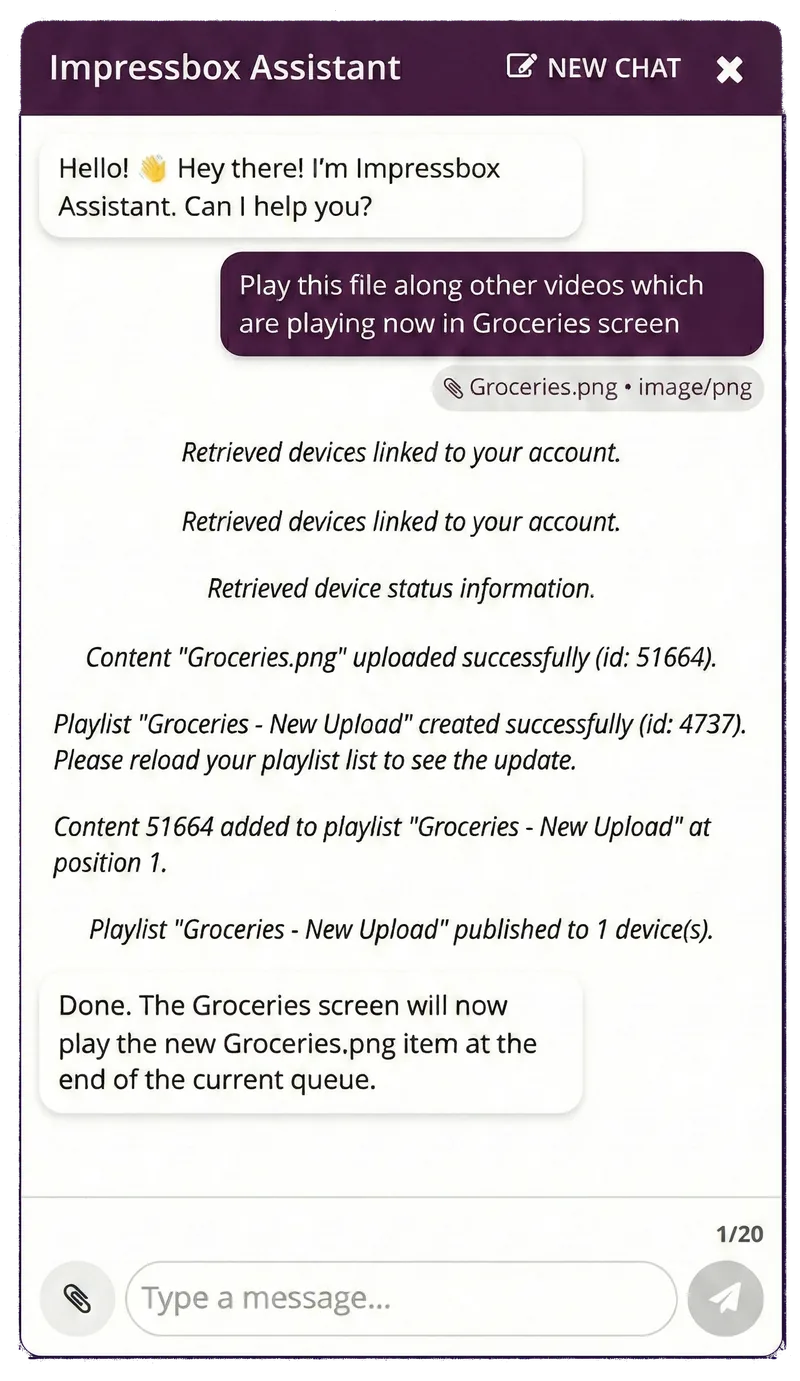
“Play these files alongside the current playlist until the end of this month.”
Adds the files to the playlist with an end date, so they stop on their own.
“Why is the Lobby screen offline?”
Checks status, logs and network reachability, then suggests or applies a fix.
“Turn the backlight off at 22:00 and back on at 09:00.”
Sets a daily backlight schedule on the device.
“Could you verify that the screens are really playing the new revision?”
Checks that each device downloaded and started the content, and flags any that did not.
More, with before-and-after images, in the prompt library.
How it works
- 1
You ask
Write the request in plain language, in any of the channels above. Attach a file or a photo if the task needs one.
- 2
The agent does the work
It turns the request into actions on your impressBox account: content, playlists, schedules and device commands.
- 3
It checks with you first
Before a sensitive action, it asks you to confirm.
- 4
It reports back
You get a summary of what changed. After publishing, it offers to check that the screens are really playing the new content.
Safety and permissions
The agent works inside the same rules as the people on your team.
Your permissions, nothing more
The agent acts with your account's existing roles and policies.
Confirmation before sensitive actions
The agent asks you to confirm before it carries out a sensitive action.
Every change is auditable
Every change the agent makes can be audited afterwards.
See it working
How we taught screens to understand chat
The story of how the impressBox team taught screens to understand chat, and why managing a screen network can be as simple as sending a message.
At Digital Signage Summit Europe 2026 in Munich, visitors to the impressBox booth sent a selfie on WhatsApp, and the agent turned it into a superhero poster on a screen within about a minute.
Frequently asked questions
What is the impressBox AI Agent?
An AI agent built into the impressBox digital signage CMS. You tell it what you need in plain language, and it creates and edits content, writes HTML templates, publishes and schedules playlists, checks device status, and diagnoses and fixes screens.
Where can I use the AI Agent?
In the chat panel of the impressBox web dashboard, on WhatsApp and in Slack, and from Claude or any other MCP-compatible AI client through the impressBox MCP server.
Is it safe to let an AI agent change what is on live screens?
The agent acts with your account's existing roles and policies, asks for confirmation before sensitive actions, and every change is auditable. After publishing it can check that each screen plays the new content.
Do I need to learn special commands?
No. Write the request as you would to a colleague. The prompt library has real examples for creating, publishing, scheduling and device control.
Can the agent fix a screen that is not working?
It can check the device status and logs, test the network with ping and traceroute, check time sync, and reboot, update or reconfigure the player. Problems that need someone on site, such as a cable or power fault, still need a person.
Which screens does it work with?
The same screens impressBox runs on: LG webOS, Samsung Tizen, Android displays and TVs, BrightSign, Raspberry Pi, x86 and ARM boards, desktop players and browsers. See supported hardware.
Try the AI Agent on your own screens
Book a demo: we walk you through the dashboard, the AI agent and the players, and answer your questions about your network.