
Hikvision
Digital signage software for Hikvision displays
impressBox runs on Hikvision Android signage displays in place of the preinstalled FocSign player, so Hikvision screens are managed from the impressBox CMS and AI agent like any other screen; impressBox is Hikvision’s software partner in the Baltics.
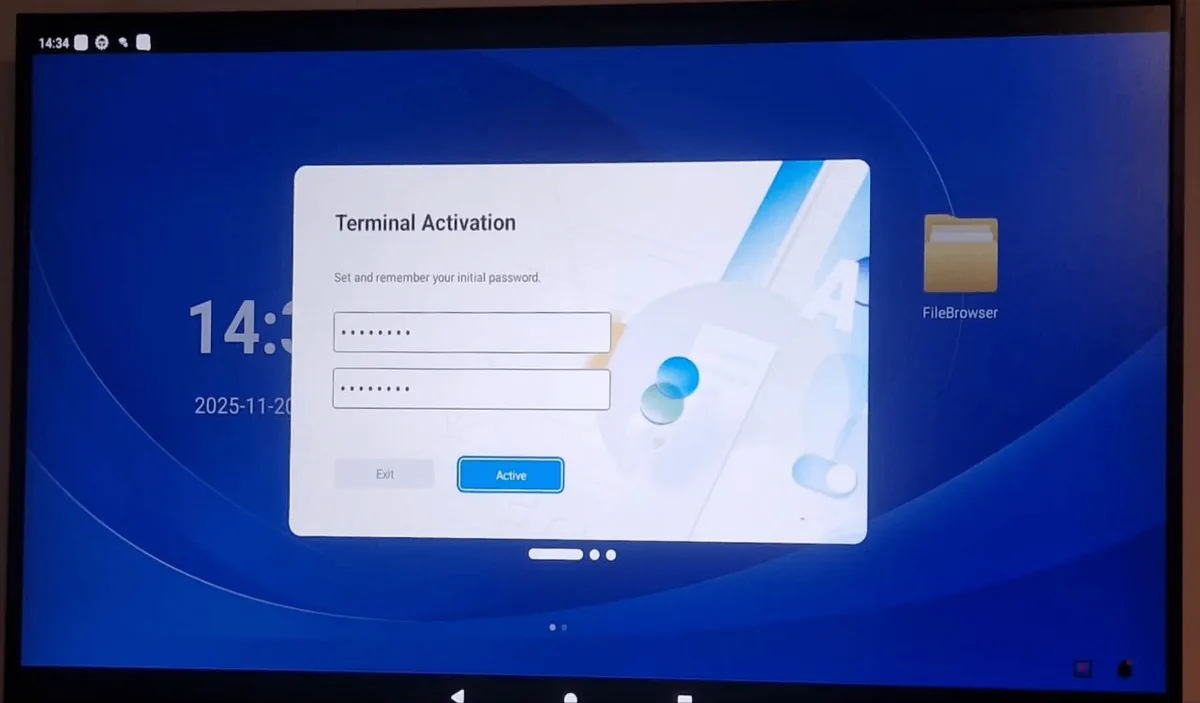
How to put impressBox on a Hikvision display
Four steps, described in detail in the setup guides.
- 1
Activate the display
Activate the new display with a password and exit the default FocSign setup.
- 2
Install impressBox Player
Install the impressBox Player APK from a USB drive, or over ADB from a computer on the same network.
- 3
Start impressBox at boot
In Run at Startup, turn impressBox Player on and FocSign Player off; optionally hide the system bars.
- 4
Pair and manage
Pair the screen with your impressBox account; from then on it is managed like any other player.
Guides: Hikvision setup (USB or ADB) · Hikvision setup via USB only
What runs on a Hikvision screen
Once impressBox Player is installed, the display joins the same network as your other screens.
CMS and scheduling
Content, playlists and cron-style schedules from the impressBox dashboard.
AI agent
Publish, schedule and check content by asking the agent in the dashboard, WhatsApp, Slack or an MCP client.
Proof of play
Playback statistics are collected on Android players, as on the other supported platforms.
Device status and alerts
Live device status, and alerts when a screen goes offline.
Example prompts
From the impressBox prompt library.
“Add device with pairing code 123456 as NewestDevice.”
Pairs a newly installed screen with your account.
“Play only this file on the device named Lobby. Name this content Mug.”
Creates the content item and publishes it to the Lobby screen.
“Play this file every working day at 11:00, once.”
Adds a weekday schedule.
“Could you verify that the devices are really playing the new revision?”
Checks that each screen downloaded and started the content.
impressBox and Hikvision
Software partner in the Baltics
impressBox is Hikvision’s software partner in the Baltics, since 2025.
ISE 2026, Barcelona
impressBox was on the Hikvision stand in February 2026, with more than 100 meetings.
Digital Signage Summit Europe 2026
The impressBox WhatsApp demo in Munich ran on a Hikvision totem.
Hikvision screens and LED, installed in the Baltics
In the Baltics, the company behind impressBox also supplies and installs screens: Hikvision and LG LCD displays, and outdoor LED screens built on Hikvision LumiUltra and LumiSquare. See impressbox.lt
For LED screens, see LED displays: content at the exact pixel size, brightness schedules and LED monitoring (beta).
Frequently asked questions
Does impressBox work on Hikvision displays?
Yes. impressBox Player installs as an Android app on Hikvision Android signage displays, from a USB drive or over ADB, and the screen is then managed from the impressBox CMS and AI agent. See the Hikvision setup guide.
What happens to the preinstalled FocSign player?
Hikvision displays ship with FocSign Player as the default signage app. After installing impressBox Player, you set it to run at startup and turn FocSign Player off in Settings → App Management → Run at Startup.
Is impressBox a Hikvision partner?
impressBox is Hikvision’s software partner in the Baltics (since 2025) and was on the Hikvision stand at ISE 2026 in Barcelona.
Can you supply and install Hikvision screens?
In the Baltics, yes: the company behind impressBox supplies and installs Hikvision and LG LCD screens, and outdoor LED screens built on Hikvision LumiUltra and LumiSquare. See impressbox.lt.
Can I manage Hikvision screens with the AI agent?
Yes. A Hikvision display running impressBox Player is managed like any other player: you can publish, schedule and check content and see device status from the dashboard, WhatsApp, Slack or an MCP client.
Run your Hikvision screens on impressBox
Book a demo: we walk you through the dashboard, the AI agent and the players, and answer your questions about your network.