
LG webOS 4.0 – 6.0 Setup
Installation guide for most standard LG commercial displays
Time & Date Settings (NTP)
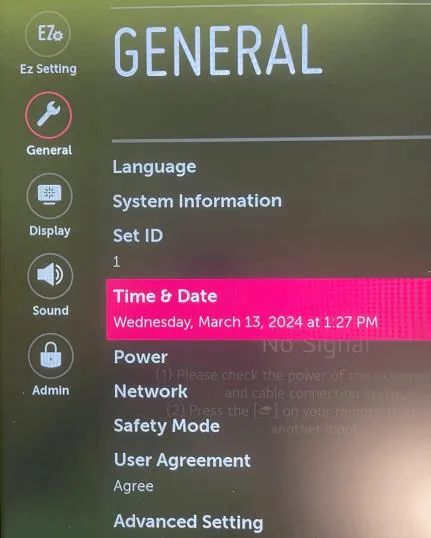
Correct time is crucial for SSL validation. If the display date is wrong, the app installation will fail.
- Go to Settings (Menu button).
- Navigate to General > Time & Date.
- Ensure Set Automatically is checked.
impressBox Application Installation
1
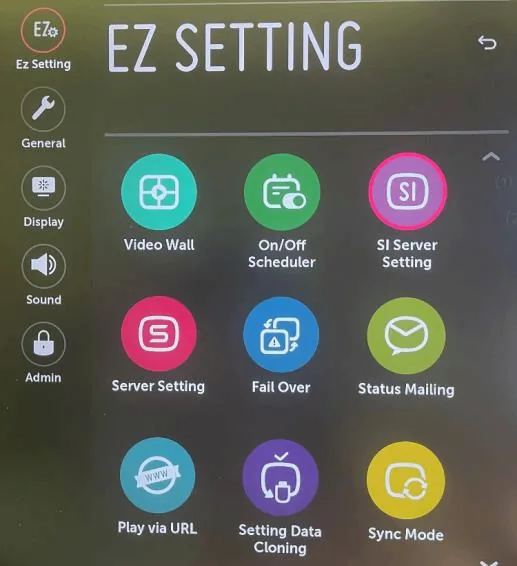
Access SI Server Settings
On the remote controller, press and hold the Settings (gear icon) button until a chat bubble appears in the top right corner. Then, quickly type 8 0 8 0 and press OK.
2
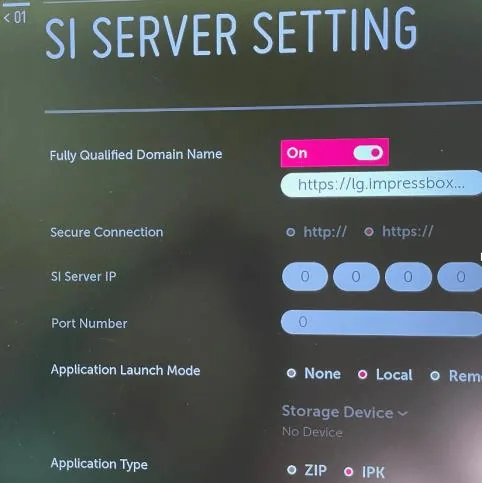
Configure Server Settings
Enable the settings as shown below:
Application Launch ModeLocal
Fully Qualified Domain NameON
Application TypeIPK
Enter URL Address:
https://lg.impressbox.eu/app.ipk
3
Update Strategy
Set Auto Set to OFF.
Set Local Application Upgrade to REMOTE.
4
Confirm Installation
Select REMOTE APPLICATION UPGRADE. The screen will display an "Application Upgrade" status bar. Once complete, it will say "Success".
Restart & Launch
- Turn the display OFF using the remote.
- Wait 10 seconds.
- Turn the display ON.
- The impressBox application should launch automatically.