
LG webOS 8 Installation
Complete guide for the latest LG webOS displays
Set Time & Date (Critical)
Important: Incorrect time settings may prevent the application from installing due to SSL certificate validation errors.
Instructions:
- Press the Settings button on your remote.
- Navigate to General.
- Select System > Time & Date.
- Ensure Time, Date, and Time Zone are correct for your location.
- Recommended: Enable Set Automatically if connected to the internet.
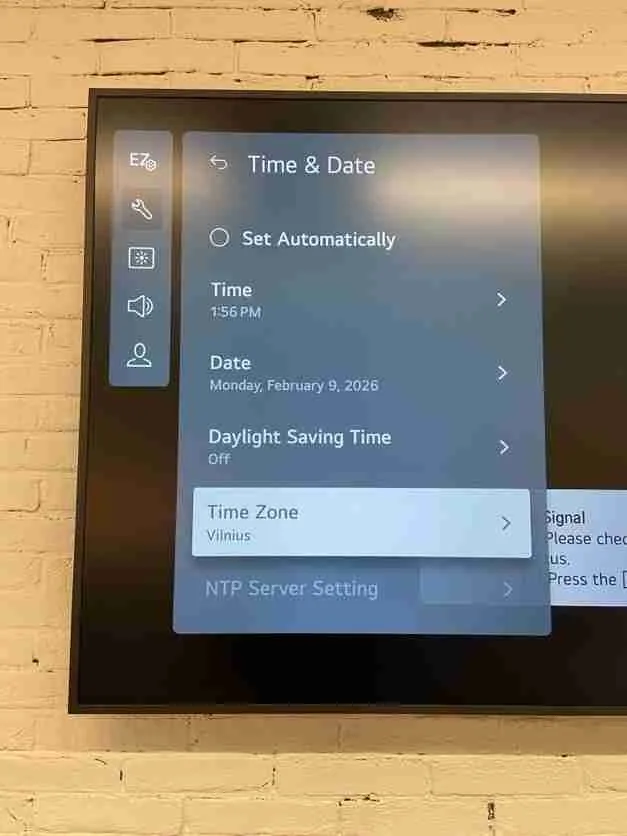
Verify date and time are current
Adjust Power Settings
This prevents the display from turning off automatically during operation.
Configuration
Navigate to:General → Power
No Signal Power OffOFF
No IR Power OffOFF
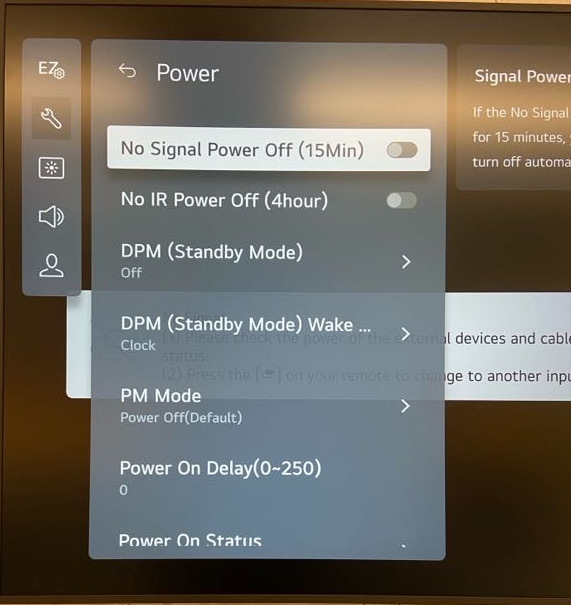
Disable auto power-off features
Configure Network
Navigate to: General → Network → Network Settings → Select: Wired Connection (Ethernet)
If your network assigns IP addresses automatically, simply plug in the LAN cable and wait until the status shows "Connected to Internet".
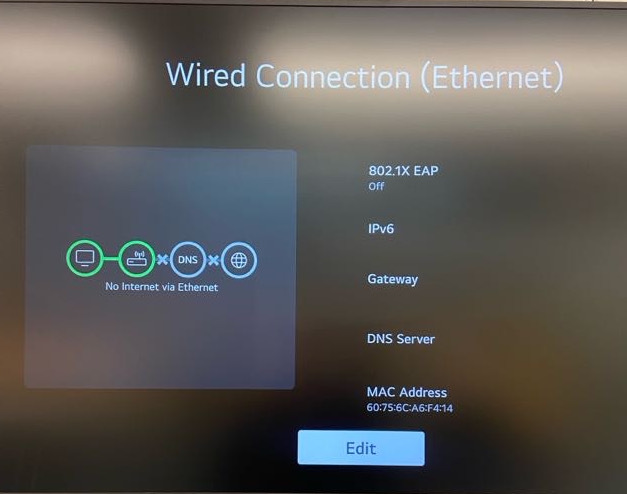
Ensure connection status is active
Install impressBox App
Navigate to: EZ Setting → SI Server Setting
Configuration Checklist
- Fully Qualified Domain NameON
- Secure ConnectionHTTP
- Application Launch ModeLocal
- Application TypeIPK
- Local Application UpgradeREMOTE
Enter URL Address:
https://lg.impressbox.eu/app.ipkStart Installation
1. Select Application Upgrade (Remote).
2. Press CONFIRM.
3. Wait for the success message.
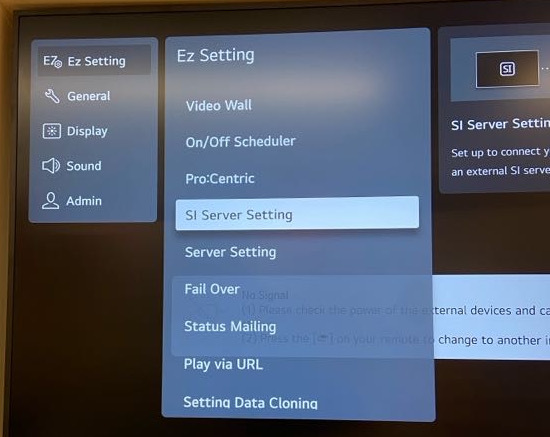
Go to SI Server Setting
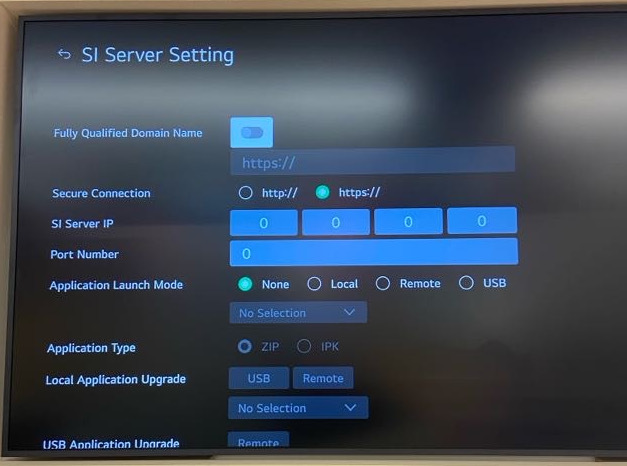
Configure server settings
Launch Player
The impressBox Player should start automatically.
If the app does not launch, restart the display:
Power OFF → Wait 10s → Power ON