
Hikvision Setup Guide
Detailed instructions for setting up Hikvision Android displays
Method 1: Install via USB Key
Simplest for on-site installation. No complex technical setup required.
Method 2: Install via ADB
Recommended for remote or professional setup. Requires developer tools.
Introduction
Hikvision professional displays run a customized version of Android OS. They include "FocSign Player" as the default signage application. To run impressBox, we need to install our Player application and configure the device to launch it automatically.
We support two installation methods depending on your access to the device:
- USB Installation: Ideal if you are physically in front of the screen. Just plug in a thumb drive and install.
- ADB Installation: Ideal for IT professionals or when setting up devices in a lab environment before deployment.
Common Prerequisites
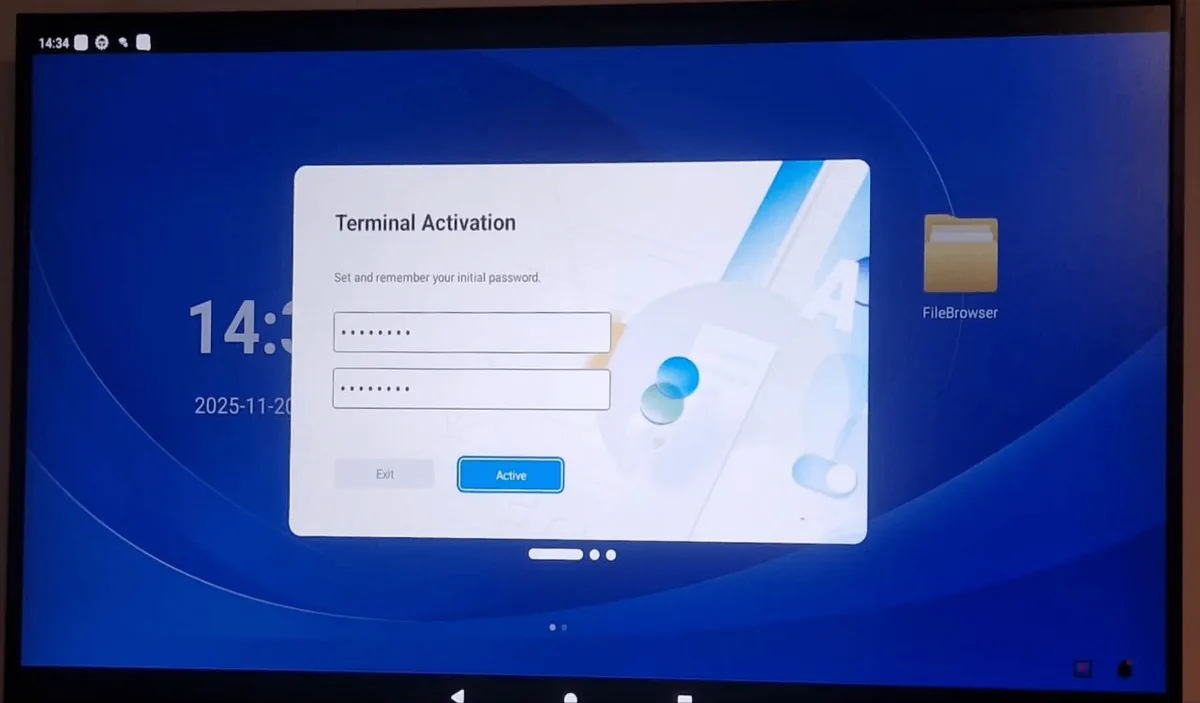
1. Activate the Display
New Hikvision displays must be activated before use.
- Power on the display.
- Select Activate.
- Set a strong alphanumeric password.
- Press Activate to confirm.
Important: Remember this password! It is required for advanced settings.
2. Exit FocSign Default Setup
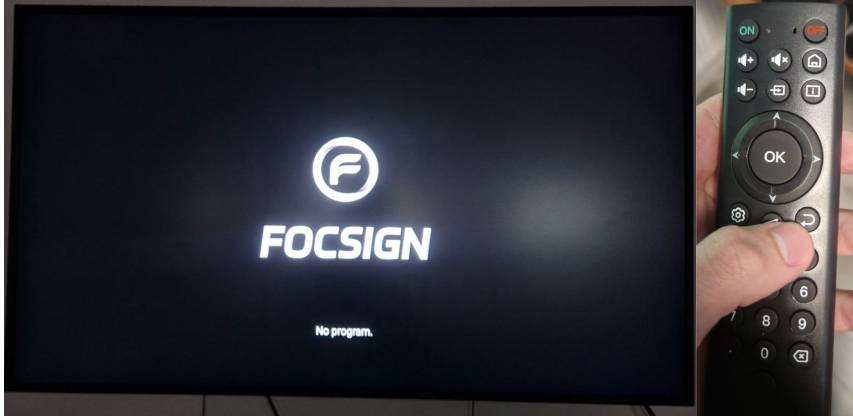
You must exit the default signage player to access the Android system.
- If prompted for password protection, select Disable.
- If prompted to register, select Cancel.
- On the main FOCSIGN screen, press Back on remote.
- Press the Exit button (door icon).
Method 1: Install via USB Key
Transfer to USB & Install
- Copy the
app.apkfile to the root of a USB drive. - Insert the USB drive into the Hikvision display.
- Open the File Manager application on the display.Note: Usually found in the app drawer or tools menu.
- Navigate to your USB storage device.
- Select the APK file and choose Install.
Completion
Once installed, click Done (do not Open yet). Proceed to the "Auto Start Configuration" section below.
System Debug is NOT required for USB installation.
Method 2: Install via ADB (Advanced)
System Debug Required
Unlike the USB method, ADB requires enabling Developer options first.
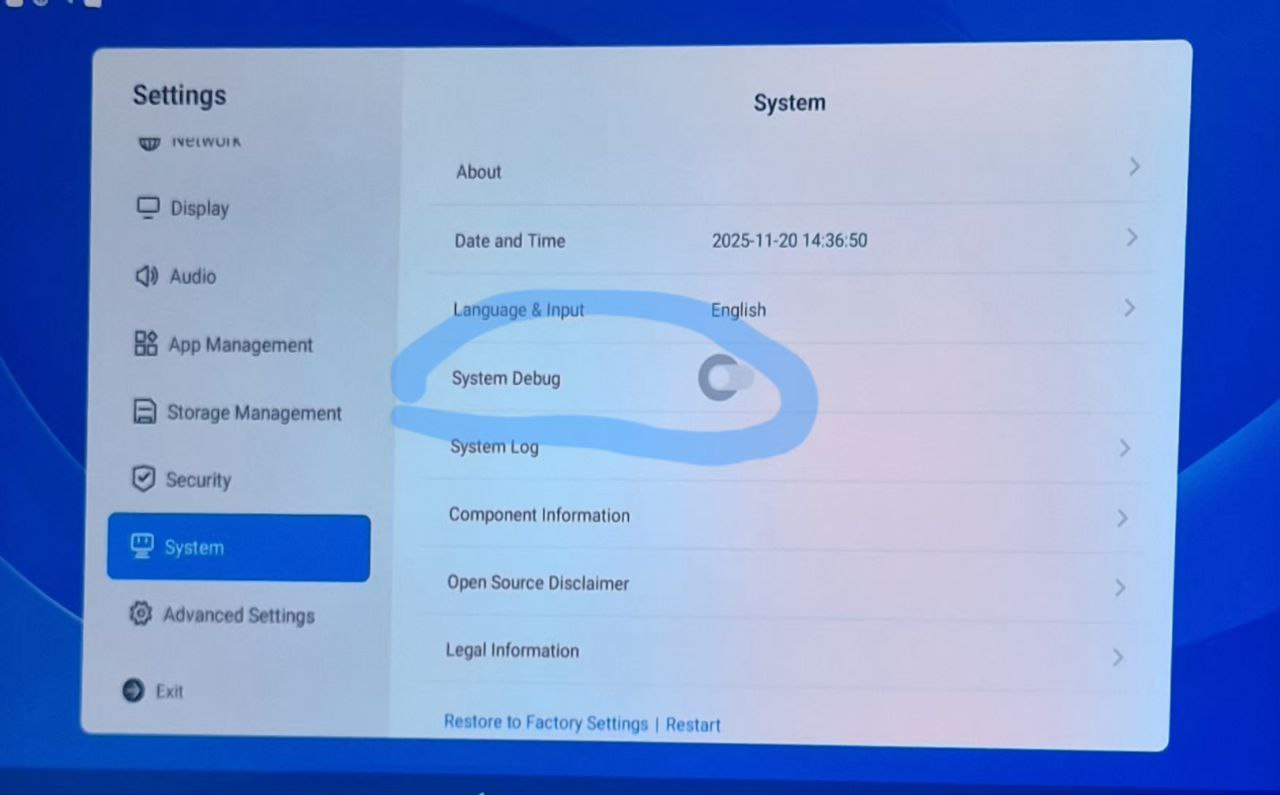
A. Enable System Debug
Navigate to: Settings → System → System Debug
- Toggle ON.
- Enter the activation password (from Step 1).
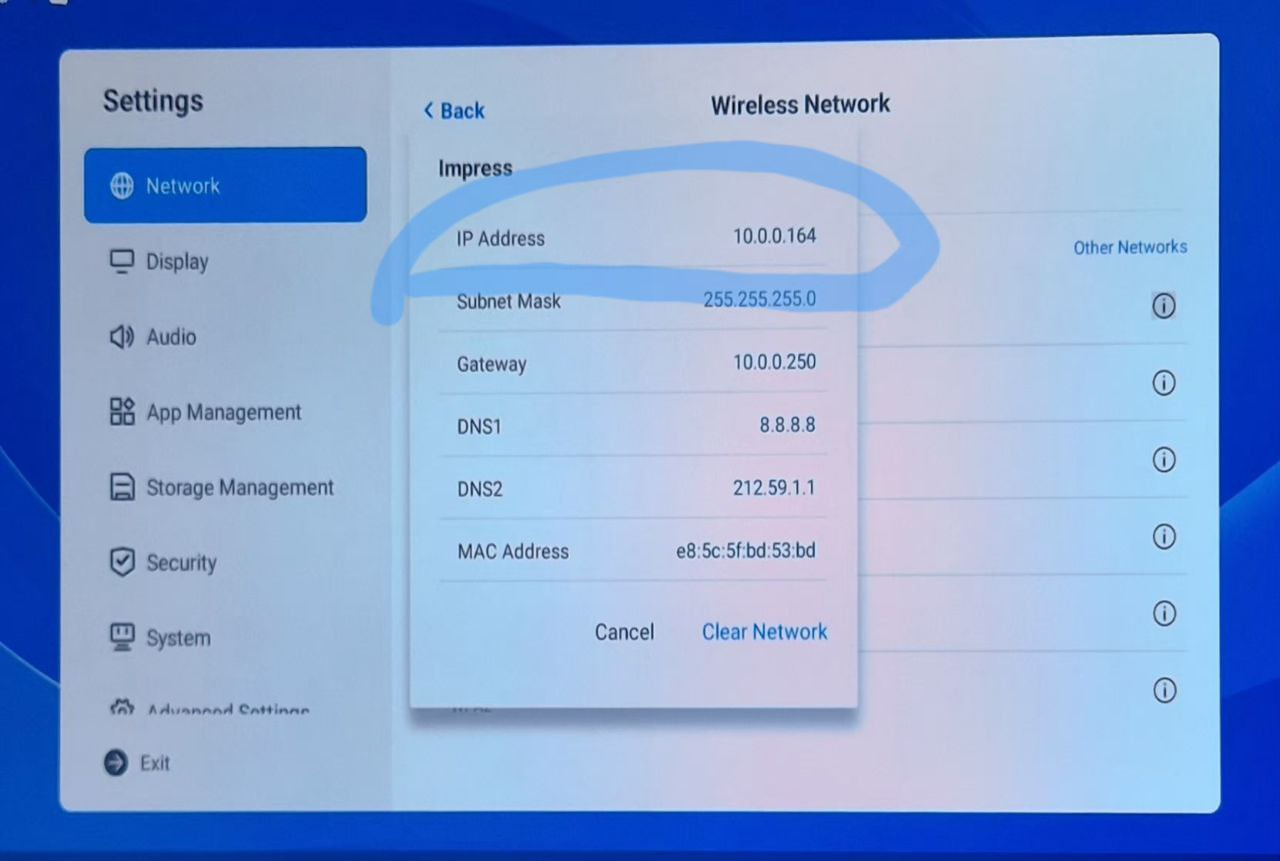
B. Connect Network
Navigate to: Settings → Network
- Connect via LAN (preferred) or Wi-Fi.
- Click the "i" icon to find the IP Address.
C. ADB Commands
1. Download the APK to your computer:
Download impressBox APKWindows (PowerShell in platform-tools folder):
macOS / Linux (Terminal):
Auto Start Configuration (Critical)
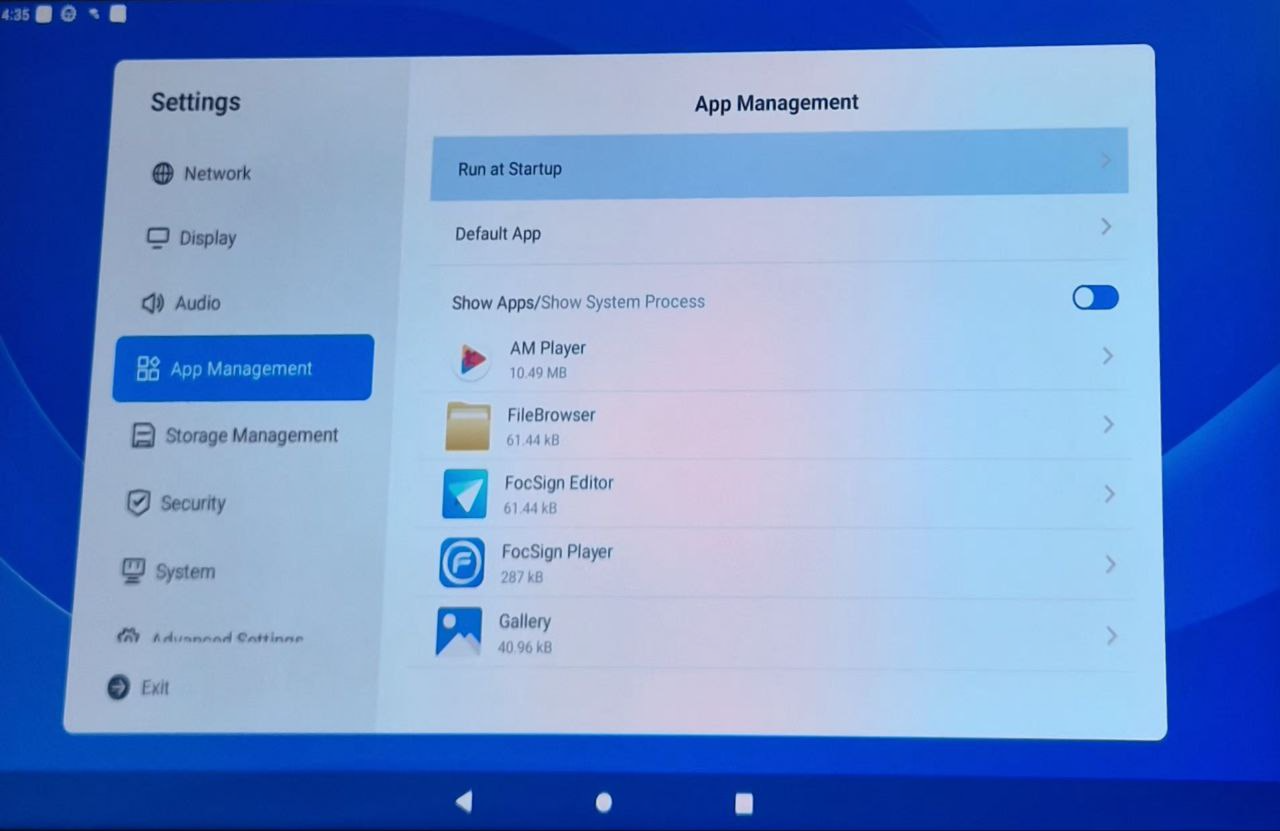
After installing the APK (via USB or ADB), you must tell the Hikvision display to launch impressBox instead of FocSign.
1Enable impressBox Player
Navigate to: Settings → App Management → Run at Startup
Find impressBox Player and toggle it ON.
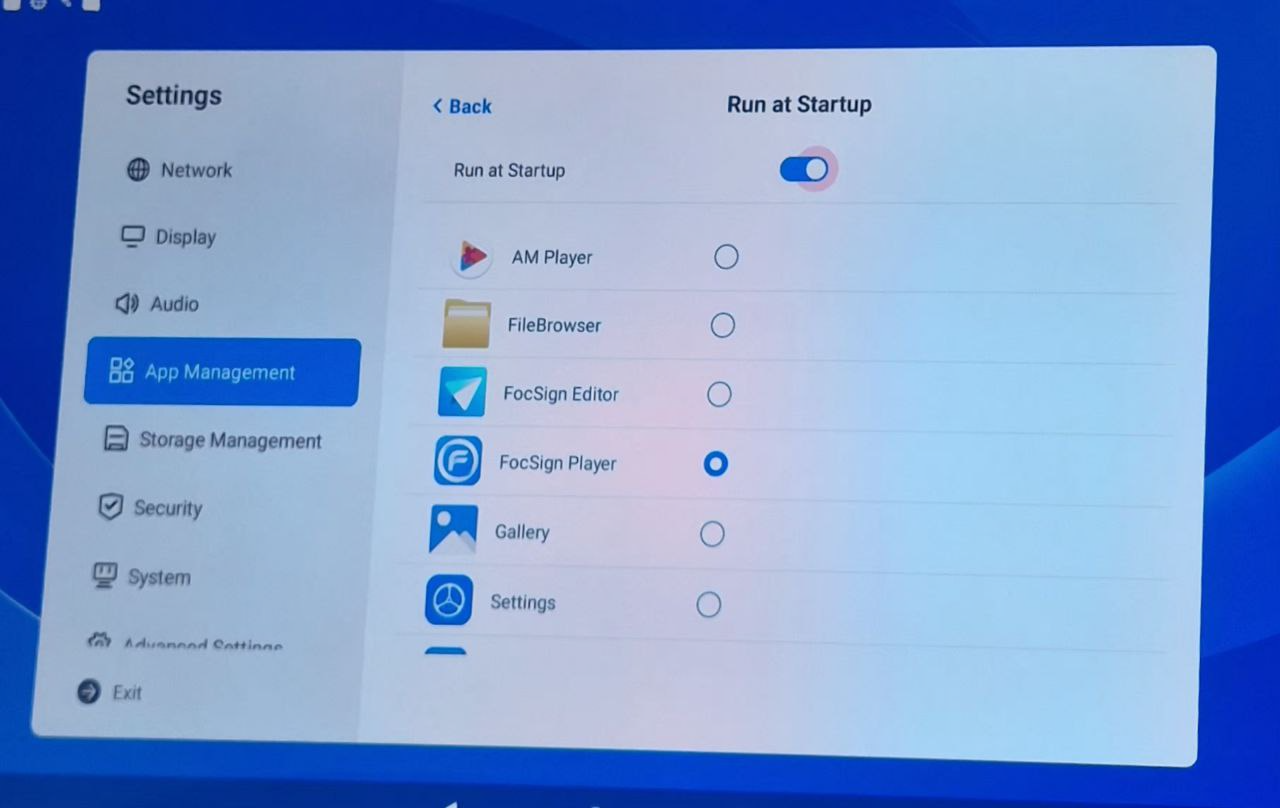
2Disable FocSign Player
In the same menu:
Find FocSign Player and toggle it OFF. This prevents conflicts.
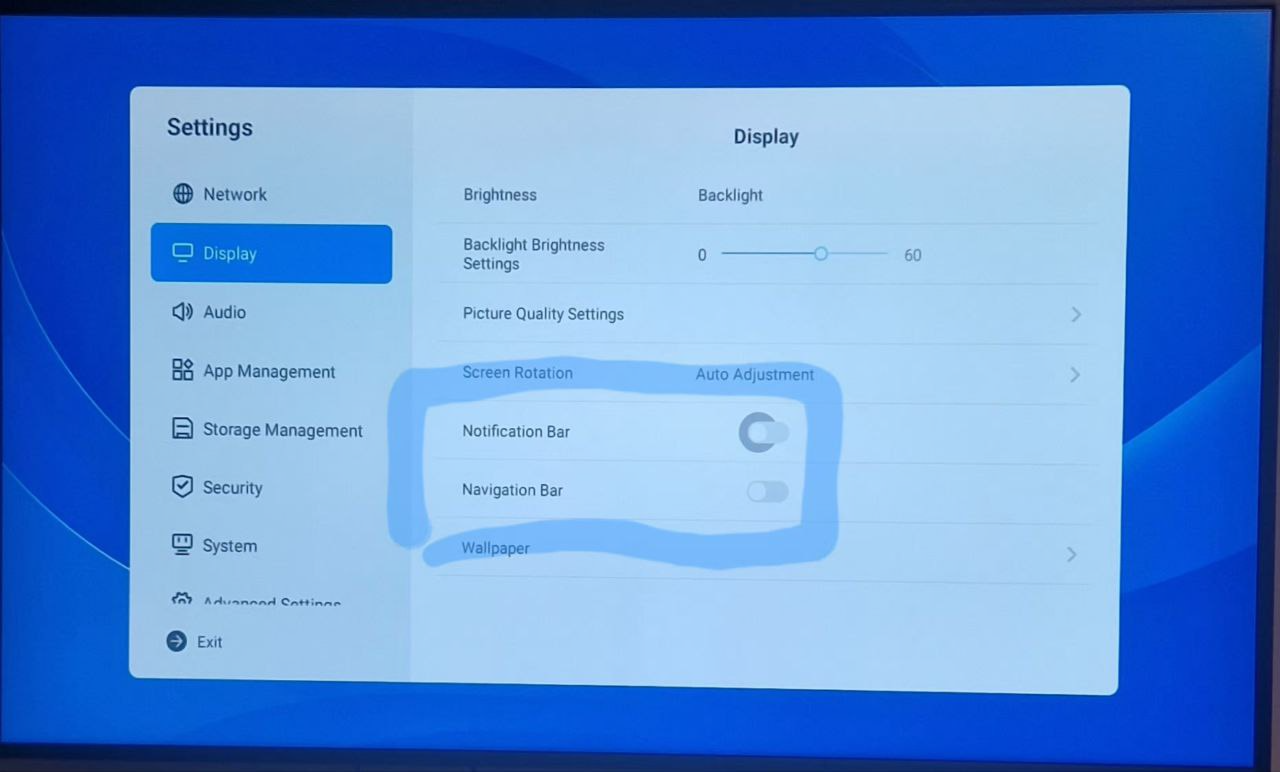
3Hide System UI (Optional)
Navigate to: Settings → Display
Disable Notification Bar and Navigation Bar for a full kiosk experience.
Production Best Practices
- Always use wired LAN connection for stability.
- Document device IP addresses and activation passwords securely.
- Reboot the device after configuration to verify auto-start works.
- Disable all unnecessary system UI elements (bars) to prevent user tampering.
- If using ADB, disable System Debug after installation for security.
- Ensure the device has internet access for content updates.
- Test your configuration on one device before fleet deployment.
What runs on a Hikvision display once impressBox is installed, and how impressBox works with Hikvision: impressBox for Hikvision displays.